How to Convert Word (DOC/DOCX) to PDF — Free, No Install
Jun 21, 2026
You're about to submit a Word (DOC/DOCX) document, then get the request: "please send it as a PDF." Sound familiar? PDF looks the same on every device and never shifts its formatting, making it the de facto standard for submissions and contracts. A Word file, by contrast, can have lines reflow or tables break depending on the recipient's Word version or fonts. This article covers the easiest way to turn Word into PDF for free, with no install, plus tips to keep the formatting from breaking.
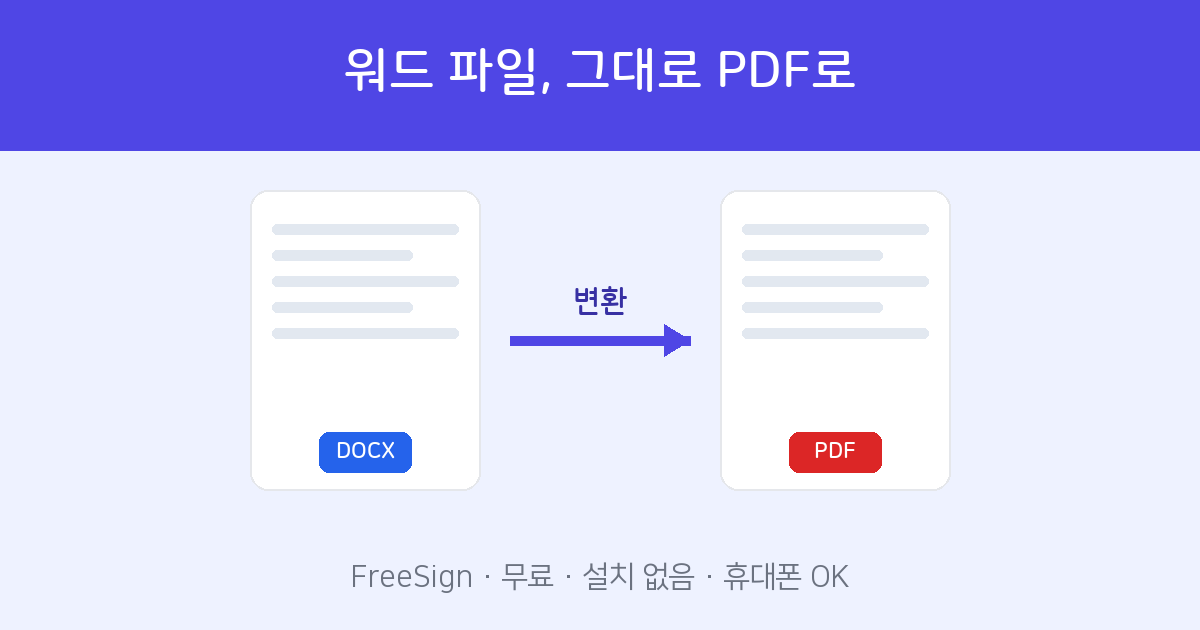
Why convert Word to PDF
- Locked layout — It stays exactly as you see it, even if the recipient's PC doesn't have the same fonts.
- Opens anywhere — It displays identically on Windows, Mac, iPhone, and Android.
- Edit-resistant — The content isn't easily changed, making it suitable for contracts and submissions.
- Sign right away — You can collect e-signatures directly on the converted PDF.
Method 1. No install — free web converter (recommended)
You don't even need Word on your PC. At the FreeSign Word → PDF converter, you can convert right away with no sign-up.
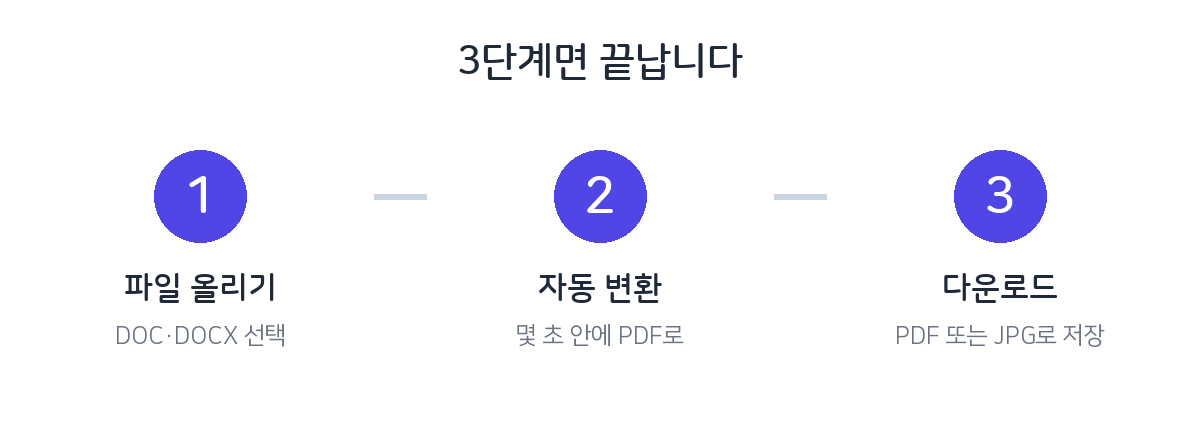
- Upload the file — Select a DOC or DOCX file or drag and drop it. (Excel and PPT convert the same way.)
- Auto-convert — After a moment it's converted to PDF and previewed right in the browser.
- Download — Download as a PDF, or save each page as an image.
Method 2. Save directly from Word (MS Office)
If you have Microsoft Word on your PC, you can save straight from the program.
- Open the document in Word.
- In File → Save As, choose PDF as the file type (or File → Export → Create PDF/XPS).
- Save, and you're done.
If you already have Word, method 2 gives you fine-grained control, including font embedding. If you don't have Word or you're on a phone, method 1 is fastest since it needs no install.
When formatting or fonts break
If a font looks different after conversion, it's usually because that font isn't available in the conversion environment. Check the following.
- When you "Save As (PDF)" in Word, turn on the embed fonts option so the fonts stay intact on any PC.
- Using widely available fonts rather than exotic ones makes conversion safer.
- For documents with lots of tables and shapes, it's worth a quick scan after conversion to confirm nothing has shifted across pages.
Turn DOC/DOCX into PDF with no install or sign-up. Free.
Word → PDF converter →Frequently asked questions
Q. Is it free?
Yes. You can use it with no sign-up, no install, and no cost.
Q. Are my files stored on the server?
They are used only briefly for conversion, and nothing beyond the result is kept.
Q. Does it work for Hancom Hangul (HWP) or Excel?
Yes. Hancom Hangul (HWP/HWPX), Excel, PPT, and images all convert to PDF the same way.
Q. I want to go the other way and turn a PDF into Word.
If you need to edit, use PDF → Word (DOCX) conversion to bring back the text.