How to Convert Hancom Hangul (HWP/HWPX) Files to PDF for Free — No Hancom Office Required
Jun 20, 2026
Have you ever received a Hancom Hangul (HWP or HWPX) file, only to find you couldn't open it or convert it to PDF because Hancom Office wasn't installed? You might be asked to send a document as a PDF, but Hancom Hangul files are often assumed to require Hancom Office to work with at all. This is especially frustrating when you're on a home laptop or phone rather than a work PC. This guide covers the easiest ways to convert HWP and HWPX files to PDF — no software installation required, completely free, and it works on mobile too.
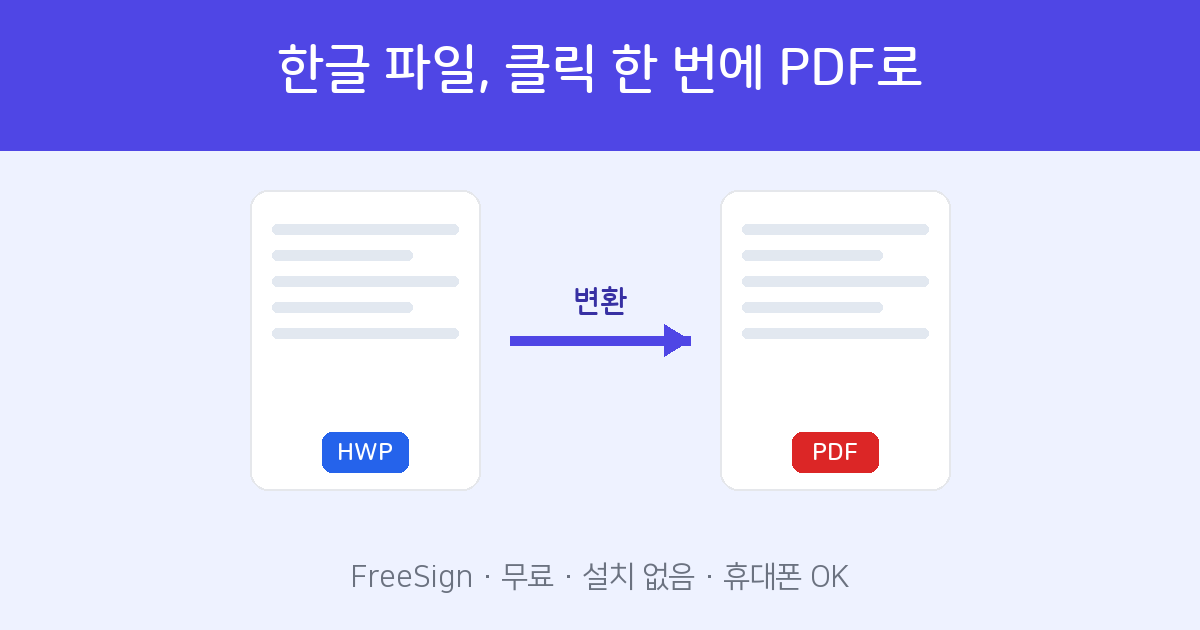
Why Convert to PDF?
- Opens the same everywhere — PDFs look identical on Windows, Mac, iPhone, and Android.
- Layout stays intact — Line breaks, fonts, and tables won't shift depending on the recipient's environment.
- The standard for submissions and printing — Most government offices, schools, and companies require PDF submissions.
- Ready for e-signatures — Once converted, the PDF can be sent out for signing immediately.
Option 1. No Installation Needed — FreeSign Free Converter (Recommended)
You don't need Hancom Office. All you need is a web browser — just head to the FreeSign HWP to PDF converter and convert instantly, no account required.
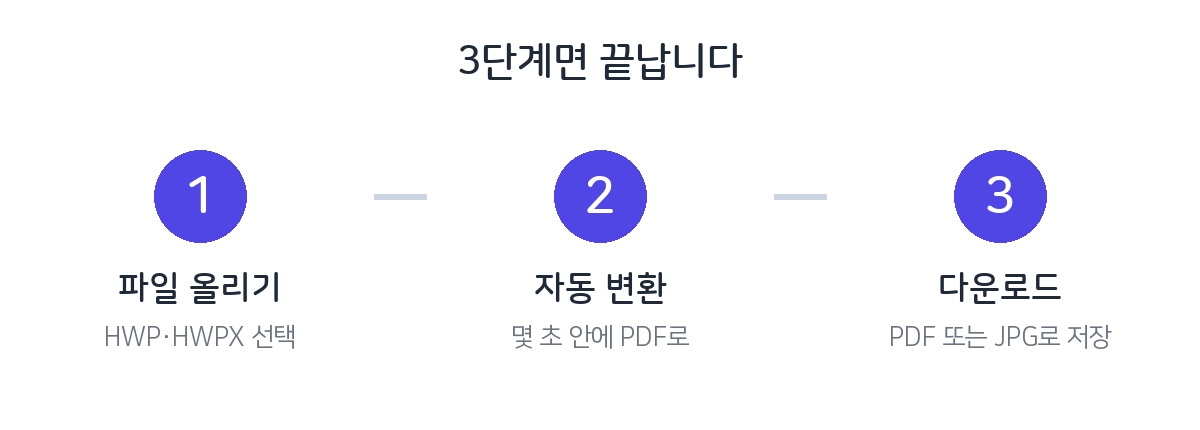
- Upload your file — Select or drag and drop your HWP or HWPX file into the converter.
- Automatic conversion — In a moment, your file is converted and a PDF preview appears right in the browser.
- Download — Save it as a PDF, or export individual pages as images if needed.
This works exactly the same on iPhone and Android, making it especially useful when you receive an HWP file on a phone without a Hangul viewer app.
Option 2. If You Have Hancom Office — Save Directly
If Hancom Hangul is installed on your PC, you can save directly to PDF from within the app.
- Open your file in Hancom Hangul.
- Click File → Save as PDF (or go to Print → select "PDF" as the printer).
- Choose where to save, and you're done.
If you already have Hancom Office, Option 2 gives you more precise control over font embedding. If you don't have Hancom Office or you're on a phone, Option 1 is the fastest — no installation needed.
Fixing Garbled or Missing Characters
If fonts look wrong in the converted PDF, it's usually because the specific fonts used in the document aren't available in the conversion environment.
- The FreeSign converter includes standard Hangul fonts, so most documents convert cleanly — but if the document uses an uncommon custom font, that section may be substituted with a similar one.
- When using Hancom Office's "Save as PDF," enabling the embed fonts option ensures the PDF looks correct on any device.
- For complex documents with many tables or images, it's worth reviewing the result after conversion and comparing key formatting against the original.
Convert HWP or HWPX to PDF. No installation or sign-up required. Free.
HWP to PDF Converter →Frequently Asked Questions
Q. Is it really free?
Yes. FreeSign's HWP to PDF converter requires no sign-up, no installation, and no payment.
Q. Is my uploaded file stored on your servers?
Files are used only for the conversion process and are not retained afterward. Sensitive documents can be converted with reasonable confidence.
Q. Does it support both the older HWP format and the newer HWPX (Hancom Hangul XML format)?
Yes, both are supported. Word (DOC/DOCX), Excel, and PowerPoint files can also be converted to PDF the same way.
Q. What if I want to convert HWP to Word instead?
If you need an editable file, use the HWP to Word (DOCX) converter — it converts to Word format without requiring Hancom Office.