How to Convert Photos to PDF — Combine Multiple Images into One PDF File (Free)
Jun 21, 2026
When submitting documents to a government office, bank, or business partner, you'll often see the instruction: "Please submit as a PDF." But the reality is that business registration certificates, bank statements, and ID cards are usually photos taken on your phone (JPG files). Send them as-is and you'll almost certainly get a reply asking you to resend as PDF.
Things get even more cumbersome when you have multiple pages — sending them one by one is tedious, and the recipient can easily mix up the order. This guide covers the easiest way to combine multiple photos into a single, properly ordered PDF. No scanner, no app installation, no account needed.
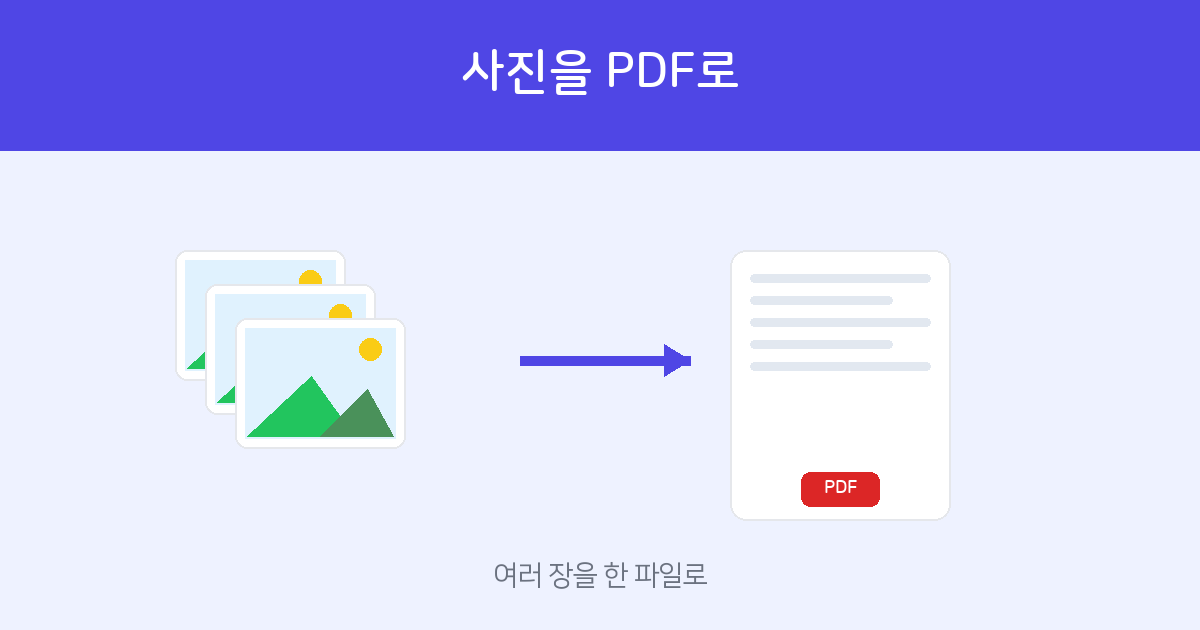
Upload multiple photos, drag to reorder, and download as a single PDF. Free, no installation or sign-up required.
Image to PDF →When You'll Need This
- Combining a business registration certificate, bank statement, and ID card into a single file for submission.
- Organizing multiple photos of receipts, quotes, or contracts into one ordered document.
- Creating a proper document PDF from phone photos alone, without a scanner.
- Sending multiple pages as a single clean PDF instead of scattering them across chat or email attachments.
How to Convert Photos to PDF — 3 Steps
- Add your photos — Go to the Image to PDF tool and upload multiple JPG or PNG files at once. You can select photos directly from your phone's gallery.
- Reorder pages — Drag the thumbnails to rearrange them, or use the ▲▼ buttons to set the page order. The first thumbnail becomes page one, the last becomes the final page.
- Create and download your PDF — Click "Create PDF" and all your photos are merged into a single file, ready to download immediately. Submit it and you're done.
Uploaded photos are used only to generate your PDF and are not stored on our servers.
Tips for a Cleaner Document PDF
- When photographing documents, use good lighting and keep the page flat. Less shadow and tilt means sharper, more legible text.
- Decide on the page order before you start (first page first, last page last) — this makes sorting after upload much faster.
- If the finished PDF is too large → use PDF Compress to reduce the file size. This makes email attachments much easier to handle.
- If you need to merge it with an existing PDF → use PDF Merge to join them together.
Drag to reorder, then create your PDF. Free, no installation or sign-up required.
Try It Now →Frequently Asked Questions
Q. Can I combine multiple photos into a single PDF?
Yes. Upload multiple photos and they'll be merged into a multi-page PDF. You can freely drag to reorder the pages as well.
Q. How do I set the page order?
Drag the thumbnails or use the ▲▼ buttons to move pages. The order shown on screen is exactly the order in the final PDF.
Q. Is it free? Are my photos stored anywhere?
It's free. Uploaded photos are used only to generate your PDF and are not stored on our servers.
Q. What image formats are supported?
Common formats are supported, including JPG, PNG, BMP, GIF, and WEBP.