How to Make an ID Photo at Home — Passport, Visa & Standard Sizes, Free
Jun 21, 2026
Passport renewal, visa applications, resumes, registration forms — you suddenly need an ID photo, but the nearest studio is far away and charges well over $10 a shot. And if the dimensions are even slightly off, the counter staff will hand it right back to you. The good news is that with a single well-framed, forward-facing photo you can now get a perfectly sized result at home. This guide walks through how to crop to exact passport, visa, or standard ID dimensions and produce a print-ready sheet you can take straight to a print shop — all in one step.
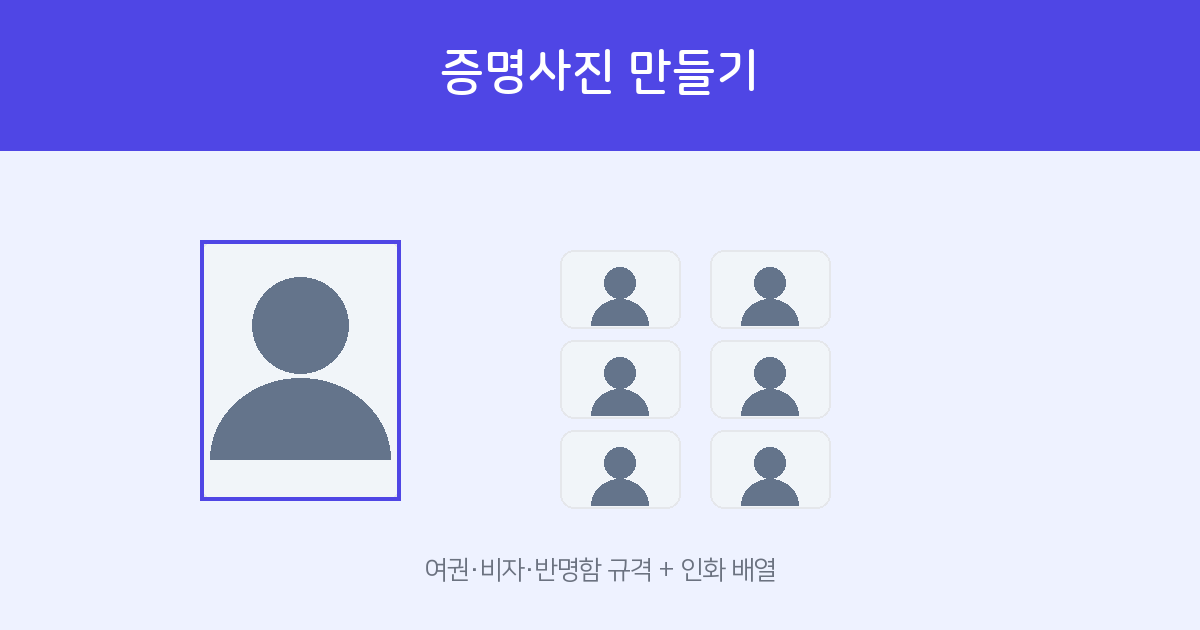
Upload your photo, choose a size, align your face, and download. Includes a 4×6 print-ready sheet. Free — no install, no account.
Make ID Photo →Check which size you need first
Accepted dimensions vary by purpose. Confirm the required size before you start so your photo isn't rejected at submission.
| Purpose | Size |
|---|---|
| Passport / Visa (Korea) | 35 × 45 mm |
| Standard ID photo (Korea) | 30 × 40 mm |
| US Visa | 51 × 51 mm (square) |
| Business card size | 50 × 70 mm |
How to make one — 3 steps
- Choose a size and upload your photo — Open ID Photo Maker, select the size you need (passport, standard, etc.), and upload your photo.
- Align your face — A crop frame locked to the correct aspect ratio appears. Drag and zoom your photo until your face sits naturally within the frame.
- Download two outputs — ① A single ID photo cropped to the exact size at 300 dpi, and ② a print-ready sheet with multiple copies arranged on a 4×6-inch (postcard-size) canvas, ready to hand to any print shop. Both are shown on screen and can be saved individually (not bundled in a ZIP).
Why the print-ready sheet is so useful
Printing a single ID photo on its own is inefficient and wastes paper. This tool takes your cropped photo and automatically tiles multiple copies on a single 4×6 sheet. Hand that file to a local print shop or self-service kiosk and ask for a standard 4×6 print — you'll get several ID photos on one sheet for just a few cents. Cut them apart and you're done.
Tips for a better result
- Use a photo taken against a clean, bright background (white or light grey) with your face looking directly at the camera. (Automatic background removal is not included.)
- Crop so your face occupies roughly 70–80% of the frame height — this meets most official requirements.
- When printing, always choose the "actual size" (or "do not scale") option to preserve the exact mm dimensions.
Related tools
If your phone photo is too large to upload comfortably, run it through Image Compressor first to reduce the file size. If your iPhone photo is in HEIC format, use HEIC → JPG Converter to convert it before uploading.
Crop to exact size and get a print-ready sheet. Free.
Make ID Photo Now →Frequently asked questions
Q. Will the printed photo match the required dimensions exactly?
Yes. The photo is cropped to precise millimetre dimensions at 300 dpi. As long as you print at "actual size" (no scaling), it will meet passport and standard ID photo requirements.
Q. Can it change the background to white?
Automatic background removal is not currently included. We recommend using a photo taken against a clean, solid-coloured background from the start.
Q. How do I save the results?
Both the cropped single photo and the print-ready sheet are displayed directly on screen. Click each one to download — they are separate files, not a ZIP.
Q. Is it free?
Yes. Completely free — no installation or account required.