Best Free PDF Compressor Sites — How to Reduce File Size (Quality-Safe, Secure)
Jun 21, 2026
Ever tried to attach an important PDF to an email only to be blocked by a "file too large" message, or hit a government or job-site upload limit (often 5MB or 10MB)? The deadline is right around the corner, the file is over 30MB, and it is maddening not knowing where to start trimming. A PDF usually gets this heavy because of the high-resolution images inside it (scans, screenshots, photos). This guide covers how to choose a free PDF compressor site, our recommendation, and the principle behind shrinking size while keeping text crisp.
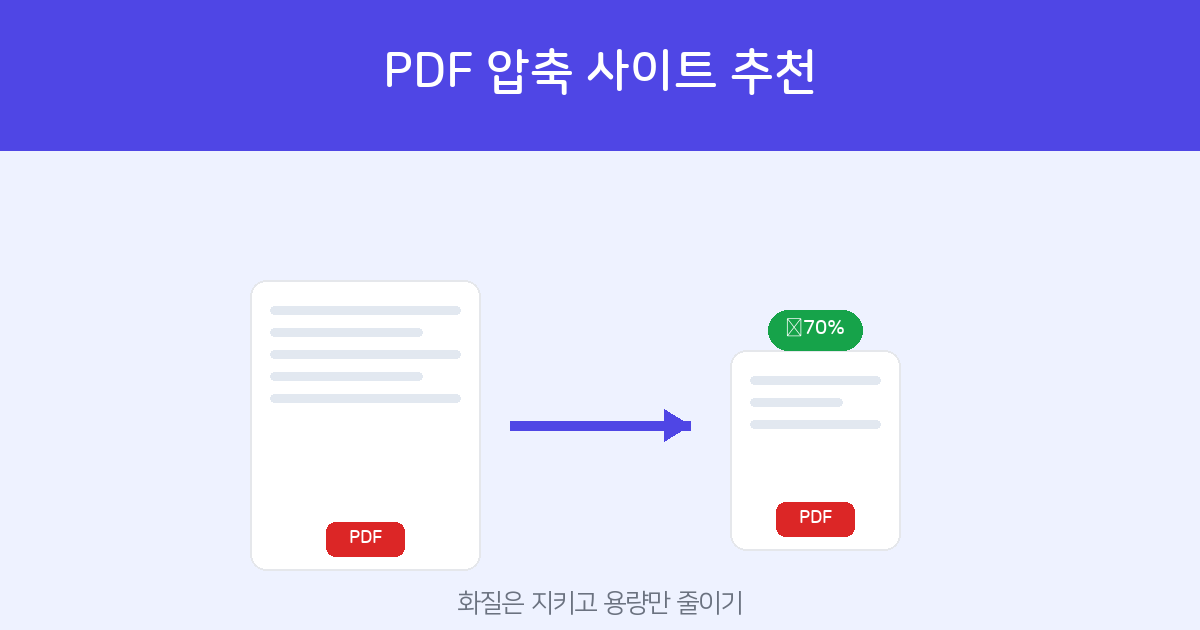
Just pick a strength and upload. Free, no install or sign-up, and uploaded files are deleted right after processing (up to 100MB).
Compress PDF →How to choose a compressor site — 5 criteria
Search "PDF compress" and you get dozens of sites, but uploading to just any of them is risky — especially for sensitive documents like contracts or ID cards. Check these five things and you will not go wrong.
- Free and size limit — whether it is truly free (no watermarks or usage caps) and whether the maximum upload size can handle your file.
- Strength control — whether you can choose the balance between quality and size yourself. A site that lets you pick from high-quality to maximum compression beats one that just crushes everything to the max.
- Security — whether it clearly states that uploaded files are deleted after processing. For sensitive documents, this is effectively the most important criterion.
- Quality preservation — whether it keeps text sharp and only shrinks images, rather than blurring the whole page.
- No install — whether it works right in the browser with no software install or credit-card registration.
The principle behind shrinking without losing quality
A well-built compressor does not turn the whole page into a photo. Instead, it finds only the image objects embedded in the PDF, lowers their resolution, and re-encodes them, while leaving the text layer intact. That is why the text stays crisp while the size drops. Conversely, a scan-style PDF where the entire page is one big image shrinks even more dramatically as that image's quality is lowered.
How to compress — 3 steps
- Upload the file — drag and drop or select your PDF at FreeSign PDF Compress. It works the same on a mobile browser.
- Pick a strength — choose from "Light (high quality)," "Standard (recommended)," or "Strong (smallest size)" to suit your purpose. "Standard" is enough for most cases.
- Compress and download — when it finishes, the reduced size is shown and the file downloads immediately. If it compressed too much, just lower the strength one notch and download again.
Uploaded files are used only for processing and are not stored on the server.
Tips worth knowing before you compress
- A text-heavy PDF with almost no images has little to trim, so it will not shrink much (that is normal, not a malfunction).
- For printing, "Light" is fine; for on-screen viewing or email attachments, "Standard to Strong" works well.
- If you will send several PDFs as one, combine them first with Merge PDF, then compress — it is easier to manage.
- For a password-protected PDF, unlock it first at PDF Password, then compress.
Just pick a strength and upload. Files are deleted automatically after processing.
Compress PDF now →Frequently asked questions
Q. Is it free? Are my files stored?
It is free, and the uploaded PDF is used only for compression and is deleted right after processing, so it is not kept on the server.
Q. Does compressing blur the text?
No. Text is left intact and only images are reduced, so the text stays sharp.
Q. The size barely changed.
A text PDF with almost no images has little room to shrink. The more image-heavy the PDF (like a scan), the more it shrinks.
Q. What is the maximum upload size?
You can upload up to 100MB, which comfortably handles most everyday documents and scans.