How to Convert a PDF to Word (DOCX) — Make It Editable (Free)
Jun 21, 2026
Ever needed to change just a little of a PDF you received, only to find it is not editable and end up retyping everything from scratch? Converting a PDF to Word (DOCX) lets you pull in the text and tables inside and edit them directly. It is especially handy for changing just the amount on a quote, or filling in a form you were sent. This guide covers how to turn a PDF into Word for free, with no install or sign-up, plus tips for a clean result.
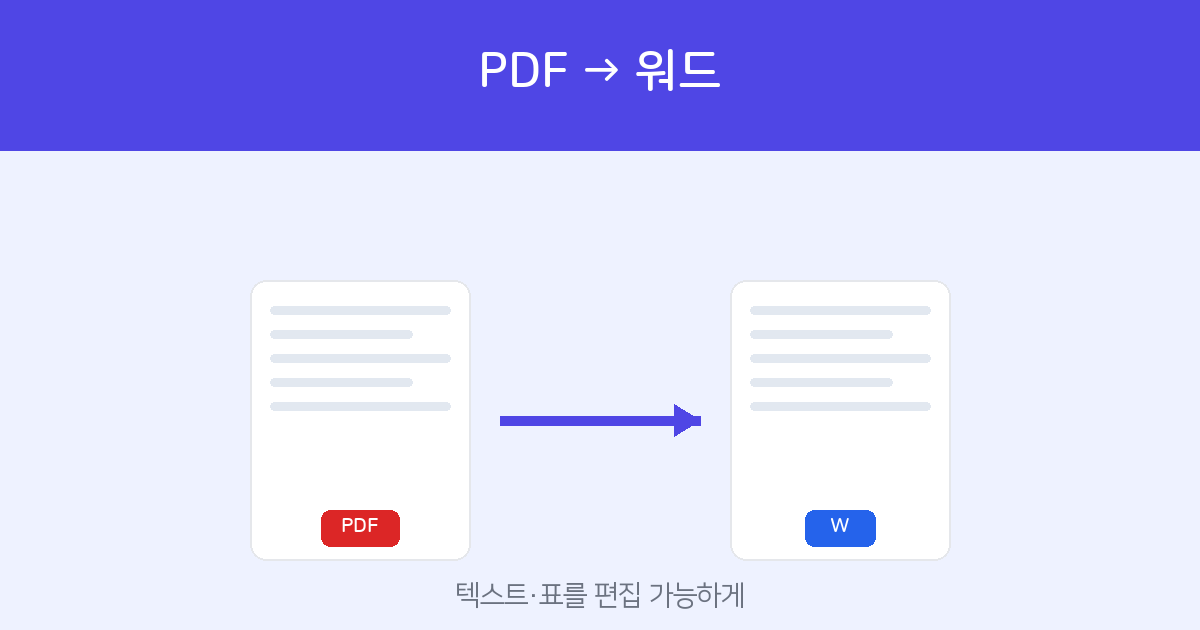
Upload a PDF and it becomes an editable DOCX with text and tables preserved. Free, no install or sign-up, and uploaded files are not kept.
PDF → Word →How to convert — 2 steps
- Upload the PDF — select or drag and drop your file at PDF → Word.
- Download — a Word (DOCX) file is created shortly after. Download it and open it in Word, Google Docs, or any compatible editor to edit.
Tips for a clean conversion
Conversion quality depends most on whether the original PDF contains text data.
- A text-based PDF converts best. This includes documents made by "Save as PDF" from Word, Google Docs, or Excel.
- A scanned image PDF (paper photographed so the letters are baked in as a picture) has no text to extract and does not convert well into an editable document.
- Tables, multi-column layouts, and complex designs may shift slightly in formatting, so a quick touch-up after converting keeps it clean.
Not sure whether your PDF is text-based? Try dragging across the letters with your mouse. If they highlight as a selectable block, it is text-based; if the whole page selects as one piece, it is a scanned image.
The other way — Word to PDF?
To turn Word (DOC/DOCX) into a PDF, use Word → PDF. You can also turn other formats like spreadsheets and slides into PDF with the document web viewer / PDF converter. If you only want to pull a "table" out of a PDF into Excel, PDF Table → Excel is more accurate.
Convert to Word with text and tables preserved. Free, no install or sign-up.
PDF → Word →Frequently asked questions
Q. Is it free? Are my files stored?
It is free, and uploaded files are used only for conversion and are not kept beyond producing the result.
Q. Does it convert scanned PDFs?
A scanned image PDF has no text data, so it does not convert well into an editable document. Use a text-based PDF.
Q. What about PDFs with lots of tables?
If it is mostly tables, PDF Table → Excel extracts more cleanly with live cells. If body text and tables are mixed, you can also convert to Word and then touch up just the tables.
Q. Can it convert to other word-processor formats?
It currently converts to Word (DOCX). You can open the converted DOCX in a compatible office suite and save it to another format from there.